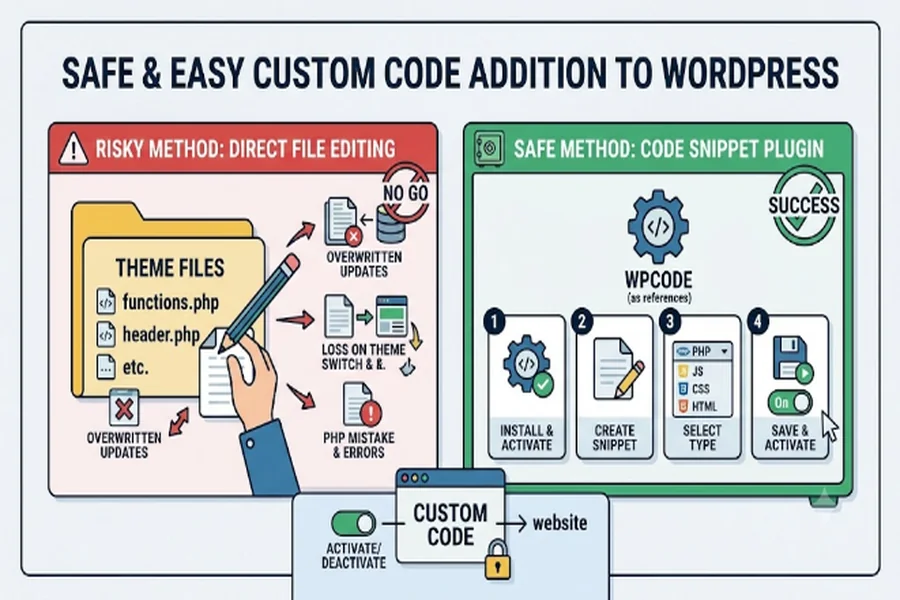
WordPress gives website owners plenty of flexibility, but adding custom code can become complicated without experience in editing theme files. Many tutorials recommend modifying functions.php, the header, or other theme files directly. While this approach can work, it also creates risks and complicates future maintenance.
Fortunately, there is a simpler way to add custom functionality without touching theme files.
Why Direct Theme File Editing Can Be Risky
Editing theme files is not always the best solution for adding small pieces of custom code. A theme update can overwrite modifications made directly to files such as functions.php. Switching to a different theme can also mean losing functionality tied to the previous theme.
Another concern is that a small PHP mistake can potentially cause errors on the website. Finding and fixing these issues inside theme files can be frustrating, especially for beginners.
Separating custom snippets from theme files makes them easier to manage, update, disable, and reuse.
Using a WordPress Code Snippet Plugin
One of the easiest approaches is to use a dedicated code snippet plugin such as WPCode Pro. WPCode allows users to add various types of custom code through the WordPress dashboard rather than manually editing theme files.
Depending on the requirements, users can work with PHP, JavaScript, CSS, HTML, and other types of snippets. This makes the plugin useful for improving functionality, tracking scripts, and making design adjustments.
More importantly, custom snippets can be managed separately from theme files, making website maintenance more convenient.
Website owners looking for WordPress solutions can also explore the range of plugins and themes available through Pluginpro, with options to support different website functionality and customization needs.
Steps to Add Custom Code With WPCode
1. Install and Activate the Plugin
Install the code snippet plugin and activate it through the WordPress dashboard. Once activated, access the snippet management area from the admin interface.
2. Create a New Snippet
Choose the option to add a custom snippet. Assign a descriptive name so its purpose is easy to identify later.
For example, use names such as “Add Custom Footer Script” or “Disable WordPress Emojis” instead of generic labels.
3. Select the Appropriate Code Type
Choose the code type that matches the intended functionality. WPCode supports several options, including PHP, JavaScript, CSS, and HTML.
Selecting the correct type helps ensure that the code is handled appropriately.
4. Configure the Code Location
Depending on the snippet, it may need to run across the entire website or only in a specific location. Header and footer scripts, for example, may require different insertion settings from PHP functions.
Appropriate configuration helps prevent unnecessary code from running on pages where it is not needed.
5. Save and Activate the Snippet
After reviewing the code and settings, save and activate the snippet. If an issue occurs, the snippet can be disabled without manually changing theme files.
Best Practices for Managing WordPress Code
A dedicated snippet manager helps keep custom code organized in one central location. Clear names, regular testing, and removing unused snippets can make long-term maintenance easier.
It is also important to back up the website before introducing significant changes and test new snippets in a staging environment whenever possible. These precautions help reduce the risk of unexpected errors affecting a live website.
For additional WordPress tools and resources, explore Pluginpro to discover solutions for managing and improving WordPress websites.
Conclusion
Adding custom code does not require editing WordPress theme files directly. A dedicated code snippet plugin offers a more organized approach to extending website functionality while reducing the risks associated with theme updates and manual file modifications.
With the right tools and maintenance practices, managing custom code becomes more straightforward for both beginners and experienced WordPress users.