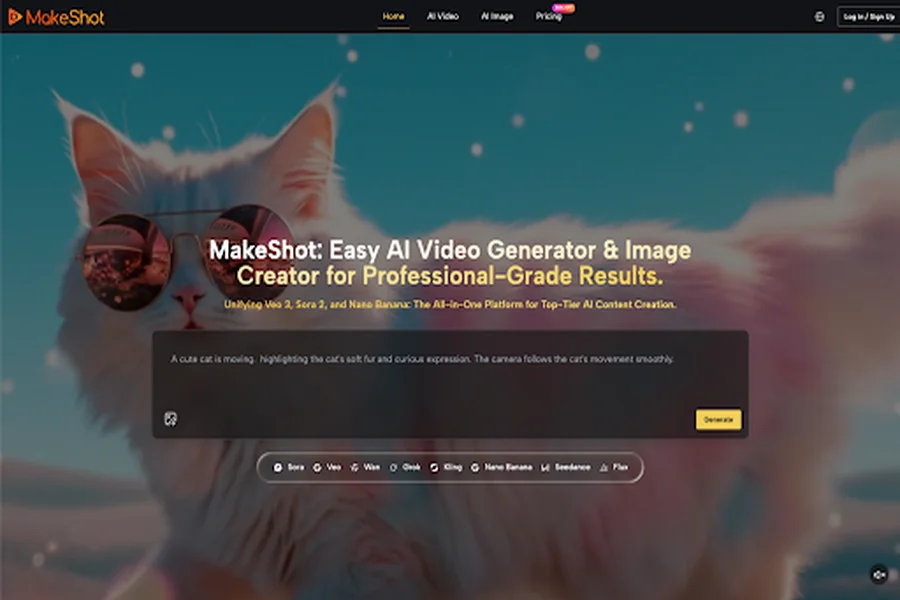
Early-stage adoption of an AI Video Generator is less like “push button, get movie,” and more like learning a new creative instrument. You’re testing prompts, discovering limitations, and figuring out what your workflow should look like when a machine can draft visuals on demand. MakeShot is interesting in this learning phase because it puts multiple models—Veo 3, Sora 2, and Nano Banana Pro—into one place, so you can compare outputs without constantly switching tools. Below is a grounded guide to using it as a beginner: what to expect, where people get stuck, and how to improve results week by week.
What beginners usually get wrong about an AI Video Generator
The first hurdle isn’t technical—it’s expectation-setting.
Misconception #1: “The first prompt should be enough.”
Most newcomers treat prompting like placing an order. In practice, it’s closer to direction on a set: you iterate. Your early prompts are rarely “wrong,” just incomplete.
A better mindset:
- Draft a simple prompt → review the output → add constraints (camera, lighting, pacing, subject consistency).
- Keep a running “prompt log” so improvements aren’t random.
Misconception #2: “AI replaces production.”
An AI Video Generator can create shots; it doesn’t automatically create a finished piece of communication. You still need:
- A point of view (what are you trying to say?)
- A structure (hook → proof → close)
- Basic editing decisions (timing, continuity, captions, audio choices)
Misconception #3: “All models behave the same.”
They don’t. Even inside one platform, different models respond differently to the same instruction. That’s why MakeShot’s “compare results across models” approach is useful for learning—beginners can see variability instead of assuming they’re “bad at prompting.”
Why a unified platform helps when you’re still learning
When you’re experimenting, the hidden cost is context-switching: different dashboards, different libraries, different settings, different “quirks.” MakeShot positions itself as an all-in-one studio that provides access to multiple premium models for AI Video Generator and AI Image Creator tasks—Veo 3 and Sora 2 for video, and Nano Banana Pro (plus other image models) for images.
Here’s what matters for early adoption:
One place to compare outputs
For beginners, a side-by-side comparison is a teacher. Run the same creative brief through Veo 3 and Sora 2, then note:
- Which model follows composition instructions better?
- Which one gives more “story-like” continuity?
- Which one breaks less often on hands, text, product details, or motion?
One asset library (less chaos)
Early-stage creators lose time hunting through downloads, version names, and folders. A central place to keep iterations reduces friction and makes practice sustainable.
Commercial usage rights reduce uncertainty
MakeShot states that content created on the platform includes full commercial usage rights. For beginners testing client-style work, that clarity matters—you can practice with “real” use cases without feeling like you’re building on shaky ground.
A beginner workflow that actually works (and doesn’t assume perfection)
The goal isn’t maximum quality on day one. The goal is a repeatable loop that produces usable outputs more often than not.
Step 1: Start with a “single purpose” brief
Before you open any AI Video Generator, write one sentence:
- “This video should convince viewers that ___”
- “This video should explain ___ in 15 seconds”
- “This video should show ___ in a realistic setting”
This prevents prompt drift—where you keep adding cool details until the result becomes incoherent.
Step 2: Choose the model based on the job, not the hype
MakeShot gives access to:
- Sora 2 (often framed around cinematic storytelling)
- Veo 3 (notable here because it supports native audio generation, meaning dialogue/SFX/ambience can be generated in sync with the video)
- Nano Banana Pro for AI Image Creator work (including up to 4 reference images for consistency)
A practical beginner rule:
- If you need story beats: try Sora 2 first.
- If sound is part of the deliverable: explore Veo 3.
- If you need consistent character/product visuals before video: use Nano Banana Pro as your AI Image Creator “grounding layer.”
Step 3: Use images to stabilize your video results
Many beginners jump straight to video and wonder why characters “shape-shift.” A calmer path is:
- Use an AI Image Creator to lock style, wardrobe, environment, and subject.
- Take the best image(s) as references.
- Generate video with clearer constraints.
MakeShot notes that Nano Banana Pro supports up to four reference images, which is especially helpful when you want the same character across multiple scenes.
Step 4: Iterate with constraints, not adjectives
Instead of “cinematic, stunning, beautiful,” try constraints like:
- “Medium shot, 35mm lens look, slow push-in”
- “Neutral studio lighting, white background, product centered”
- “Two-shot, eye-level camera, minimal camera movement”
- “No text on screen; no logos; no extra objects”
Constraints reduce surprise. Adjectives increase it.
Step 5: Finish outside the generator (lightly)
Even when an AI Video Generator gives you a strong draft, finishing typically includes:
- Trimming dead time
- Adding captions
- Leveling audio (or replacing it, depending on needs)
- Simple color consistency between clips
Think of AI as production assistance, not the entire post-production pipeline.
Model selection cheat sheet: Veo 3 vs Sora 2 vs Nano Banana Pro
Below is a beginner-friendly way to think about the three names you’ll hear most on MakeShot. This isn’t a benchmark—just a workflow lens.
| Model | Best used for | Beginner advantage | Common beginner pitfall |
| Veo 3 | Video when audio matters | Native audio generation can reduce extra steps | Relying on audio without reviewing clarity and pacing |
| Sora 2 | Story-driven or cinematic sequences | Useful when you need “scene logic” | Overstuffing prompts with too many beats at once |
| Nano Banana | AI Image Creator tasks, consistency prep | Up to 4 reference images can help maintain identity/style | Trying to force video-like motion into still prompts |
A practical way to use this table: pick one “hero” model per project, and one supporting model for references or alternates. Don’t juggle everything every time—you’ll never learn what caused what.
Where AI-assisted production saves time (and where it doesn’t)
It’s tempting to measure value only by generation speed. Beginners get better results by measuring revision speed.
Usually faster with AI
- Early ideation: generating multiple visual directions quickly
- “Good enough” B-roll: establishing shots, backgrounds, transitional visuals
- Campaign variations: multiple versions of a concept for testing
- Rapid product mockups via an AI Image Creator (especially when you don’t have a photoshoot)
Not automatically faster
- Tight brand compliance (exact colors, typography, legal copy)
- Anything requiring precise on-screen text (still a common pain point)
- Long-form continuity (character consistency across many scenes)
- Complex motion choreography
So the realistic adoption strategy is: use an AI Video Generator where imperfection is acceptable or even stylistic, and keep traditional tools where precision is non-negotiable.
Common beginner questions (answered without the fairy tale version)
“Why does the output ignore part of my prompt?”
Because prompts are competing instructions. If you ask for five big changes at once, the model may prioritize the most visually dominant ones.
Try:
- One core action per clip
- One camera instruction
- A short negative list (“no text, no logos, no extra people”)
“How do I keep characters consistent?”
Start with an AI Image Creator step. MakeShot specifically highlights Nano Banana Pro supporting up to four reference images, which can help anchor identity and style. Then keep wardrobe, lighting, and camera framing stable across scenes.
“Should I generate video first or images first?”
If the project depends on a recognizable subject (product, character, mascot), images-first is calmer. If it’s abstract (mood, scenery, transitions), video-first can be fine.
“Is native audio generation a shortcut or a trap?”
With Veo 3, native audio generation can be a real time-saver because you’re not forced into a separate audio pass just to get a presentable draft. But you still need to review intelligibility and tone. “Generated” doesn’t mean “approved.”
The takeaway: treat MakeShot as a training ground, not a magic wand
Beginners succeed with an AI Video Generator when they stop chasing one perfect output and start building a small, repeatable workflow. MakeShot’s value in that stage is practical: multiple models (Sora 2, Veo 3, Nano Banana Pro) in one place, the ability to compare results, and a clear path from AI Image Creator references to more controlled video generation.
If you approach it like a craft—brief → generate → critique → constrain → repeat—you’ll get to “useful” faster, and you’ll keep improving without burning out on endless trial-and-error.