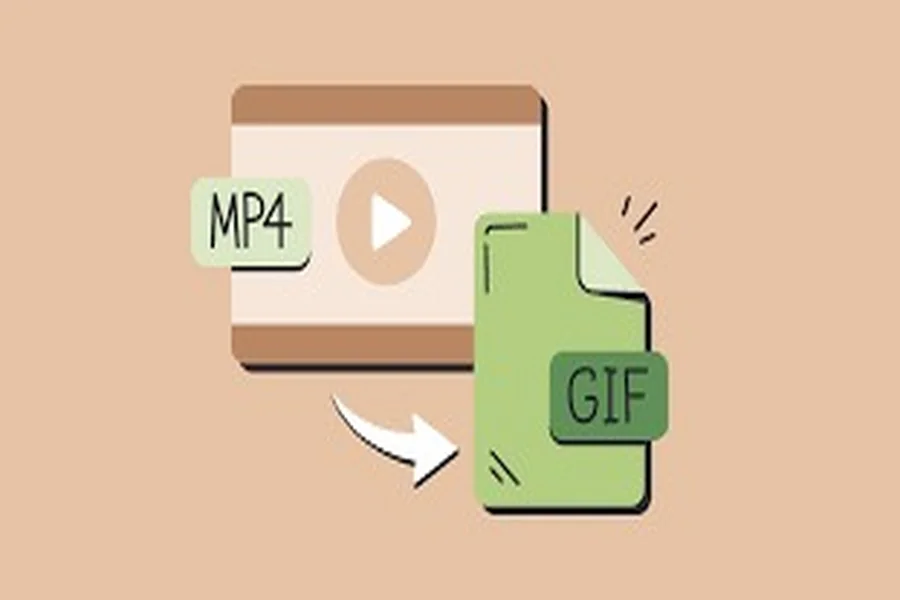
Converting a GIF to MP4 may seem like a technical task, but with Adobe Express, it’s actually quick and easy. Whether you’re creating content for social media, improving website speed, or just trying to modernize your visuals, this guide will walk you through everything you need to know.
In this article, we’ll cover why you should convert your GIFs, what benefits MP4 brings, how to use Adobe Express for free, and provide some examples and tips along the way.
Why Convert GIFs to MP4?
GIFs have been around for decades and are widely used for short animations. However, as content becomes more sophisticated, MP4 is becoming the preferred format.
Main Reasons to Convert:
- File Size: MP4 videos are much smaller than GIFs of the same duration.
- Better Quality: MP4 supports HD and smoother playback.
- More Compatible: MP4 works on every device, browser, and social media platform.
- Audio Support: You can add background music or voiceovers with MP4.
- Editing Options: MP4s are easier to edit, resize, or add effects.
Converting from GIF to MP4 improves your media quality and user experience.
MP4 vs GIF: A Side-by-Side Comparison
| Feature | GIF | MP4 |
| Quality | Low to Medium | High (HD/4K) |
| File Size | Large | Smaller (compressed) |
| Audio Support | ❌ | ✅ |
| Editing Flexibility | Limited | Full control (trim, music, etc) |
| Social Media Ready | Not accepted everywhere | Fully accepted everywhere |
Step-by-Step: How to Convert GIF to MP4 Using Adobe Express
Adobe Express is a web-based tool that makes it easy for anyone to convert GIFs. No experience required, and no software installation needed.
Step 1: Open Adobe Express
Visit Adobe’s free video converter. This is the official online tool provided by Adobe.
Step 2: Upload Your GIF File
Click “Upload your content” and select your .gif file from your device. You can also drag and drop.
Step 3: Choose MP4 as the Output Format
Adobe will detect your file and allow you to choose your output format. Select MP4.
Step 4: Customize (Optional)
Enhance your video using built-in editing tools:
- Add text or captions
- Trim the start or end of your clip
- Resize for different platforms (Instagram, TikTok, YouTube)
- Add background music or sound effects
Step 5: Download Your New MP4
Click the “Download” button to save your video. You can now upload it to social media, embed it in a website, or use it in your projects.
Real-Life Example
Imagine you’ve created a fun animation of your brand’s mascot dancing. You want to share it on Instagram Stories. Instagram doesn’t support GIFs, but it does support MP4.
What do you do?
- Upload the dancing mascot GIF to Adobe Express.
- Convert it to MP4 in seconds.
- Resize to 9:16 format for Instagram Stories.
- Add text like “Happy Friday!” and a short tune.
- Download and post!
In under 5 minutes, your static GIF is now an engaging, platform-ready video.
Pro Tips for Best Results
- Always start with the highest quality GIF possible.
- Resize the MP4 according to the platform (use Adobe’s aspect ratio presets).
- Use Adobe’s text overlay tool to add CTAs or hashtags.
- Keep videos under 60 seconds for social sharing.
- Avoid unnecessary looping unless it fits the platform (e.g., TikTok).
When to Use MP4 Instead of GIF
| Use Case | Use GIF | Use MP4 |
| Social media stories | ❌ | ✅ |
| Adding sound/music | ❌ | ✅ |
| Video ads or promotions | ❌ | ✅ |
| Quick memes | ✅ | ❌ |
| Animated logos on websites | ✅ | ❌ |
| Email attachments (small) | ✅ | ❌ |
As you can see, MP4 is best when you need compatibility, sound, or smaller sizes.
Frequently Asked Questions (FAQs)
Q: Is Adobe Express free to use?
Yes! Adobe Express offers free tools for basic media conversion, including GIF to MP4. Premium features are optional.
Q: Will the MP4 look exactly like the GIF?
Yes, and it may even look better due to improved rendering and higher frame rate in MP4.
Q: Can I use Adobe Express on mobile?
Absolutely. You can access it via any browser or download the mobile app for Android and iOS.
Q: Does it support batch conversion?
Not yet. Adobe Express is optimized for single conversions at a time, perfect for quick editing.
Conclusion
Converting your GIF to MP4 using Adobe Express is one of the easiest ways to modernize your media. MP4 offers superior quality, better performance, smaller file sizes, and broader compatibility. Whether you’re a marketer, social media creator, or just someone looking to share fun content, this tool makes conversion simple and free.